 Mr. Editor-in-chief
 Xesim Guide for Chinese iPhones
Chinese mainland iPhones are different from many international iPhone models. They normally support two physical SIM cards, but they do not support native eSIM installation through iOS. This creates a problem for people who travel often or need mobile data plans from different countries, because many travel SIM providers now deliver their plans as eSIM QR codes.
Xesim solves this problem by turning the second physical SIM slot into a programmable eSIM carrier. Instead of installing an eSIM directly into the iPhone, the eSIM profile is downloaded into the Xesim physical card. The iPhone still sees it as the second physical SIM, but Xesim can manage different eSIM profiles inside that card.
This guide explains how to install a third-party eSIM QR code, such as a Thailand data plan from RedTeaGO, into Xesim on a Chinese iPhone 17.
The Basic Setup
The setup described here is:
- Primary SIM slot: normal physical SIM card, usually the main Chinese number.
- Secondary SIM slot: Xesim physical card.
- eSIM provider: any provider that gives an eSIM QR code, such as RedTeaGO, Nomad, Airalo, or similar services.
- Phone model: Chinese iPhone 17 or another Chinese iPhone model without native eSIM support.
The important point is that the eSIM is not installed through the iPhone’s normal eSIM menu. It is installed into the Xesim card through the Xesim app and the iPhone’s SIM Applications menu.
Why the Normal iPhone eSIM Method Does Not Work
On iPhones with native eSIM support, the usual method is:
Settings → Cellular → Add eSIM → Scan QR Code
However, Chinese mainland iPhones do not provide the same native eSIM function. Even if an eSIM provider gives a valid QR code, the iPhone itself cannot directly install that eSIM profile.
With Xesim, the workflow is different:
eSIM provider QR code → Xesim app → STD Download information → iPhone SIM Applications → Xesim → Download eSIM → eSIM profile written into the Xesim card
This means the QR code is only the starting point. The actual installation happens through the Xesim card.
Step 1: Buy an eSIM Plan and Open the QR Code
After buying a data plan from an eSIM provider, open the order page and find the installation QR code.
For example, with a Thailand travel eSIM, the provider may show a page with:
Scan to install eSIM
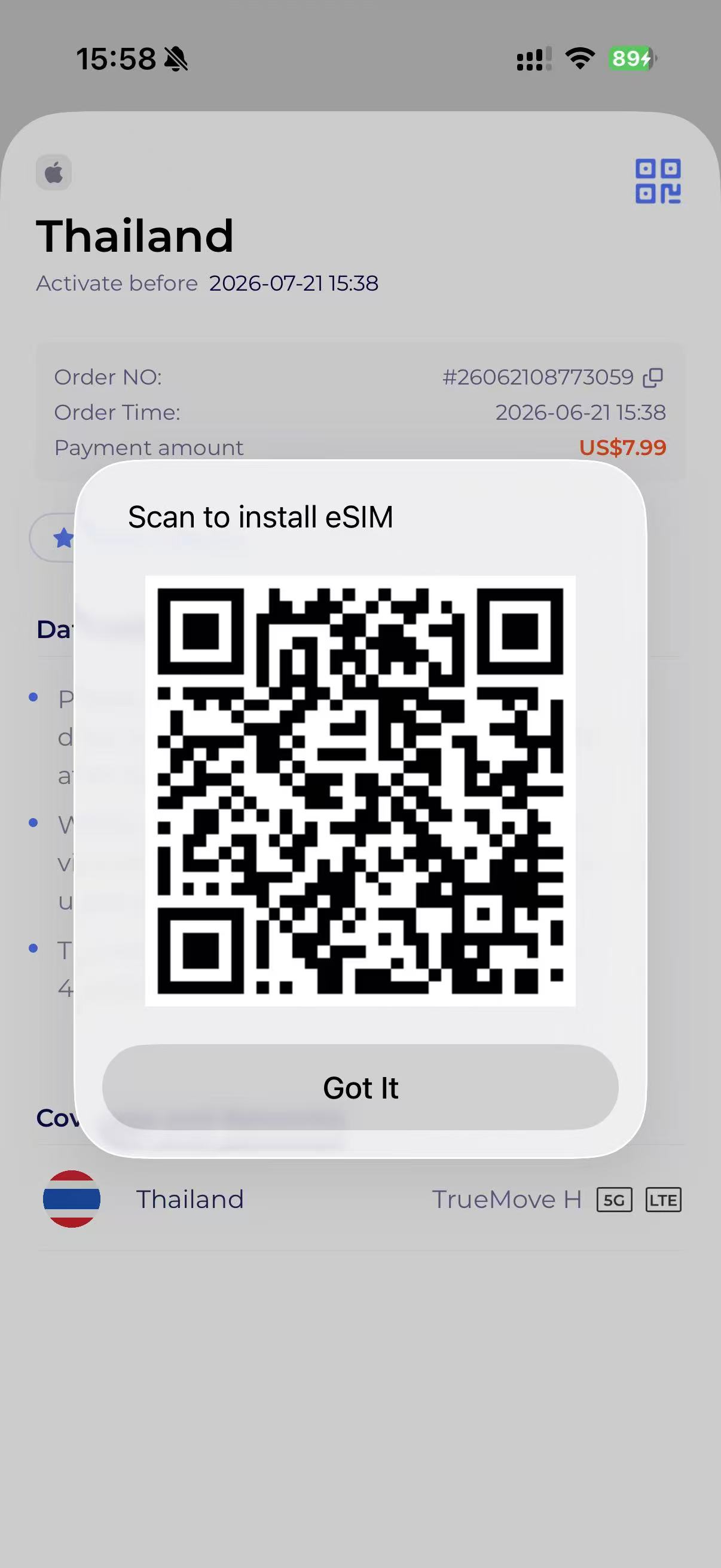
The QR code contains the eSIM download information, usually including the SM-DP+ address and activation code.
Do not share this QR code with anyone. An eSIM QR code should be treated like a password. If another person scans and installs it first, the eSIM may become unusable for the original buyer.
Step 2: Open the Xesim App
Open the Xesim app on the iPhone.
On the top-right corner of the app, tap the scan icon. It may look like a small QR-code icon rather than a button with the word “Scan.”
Use this function to scan or recognize the QR code from the eSIM provider.
Depending on the app version, the QR code can usually be scanned directly from another screen. If the QR code is saved as an image, the app may also allow image recognition from the photo album.
Step 3: Open STD Download
After the Xesim app recognizes the eSIM QR code, it should bring up a page related to eSIM downloading.
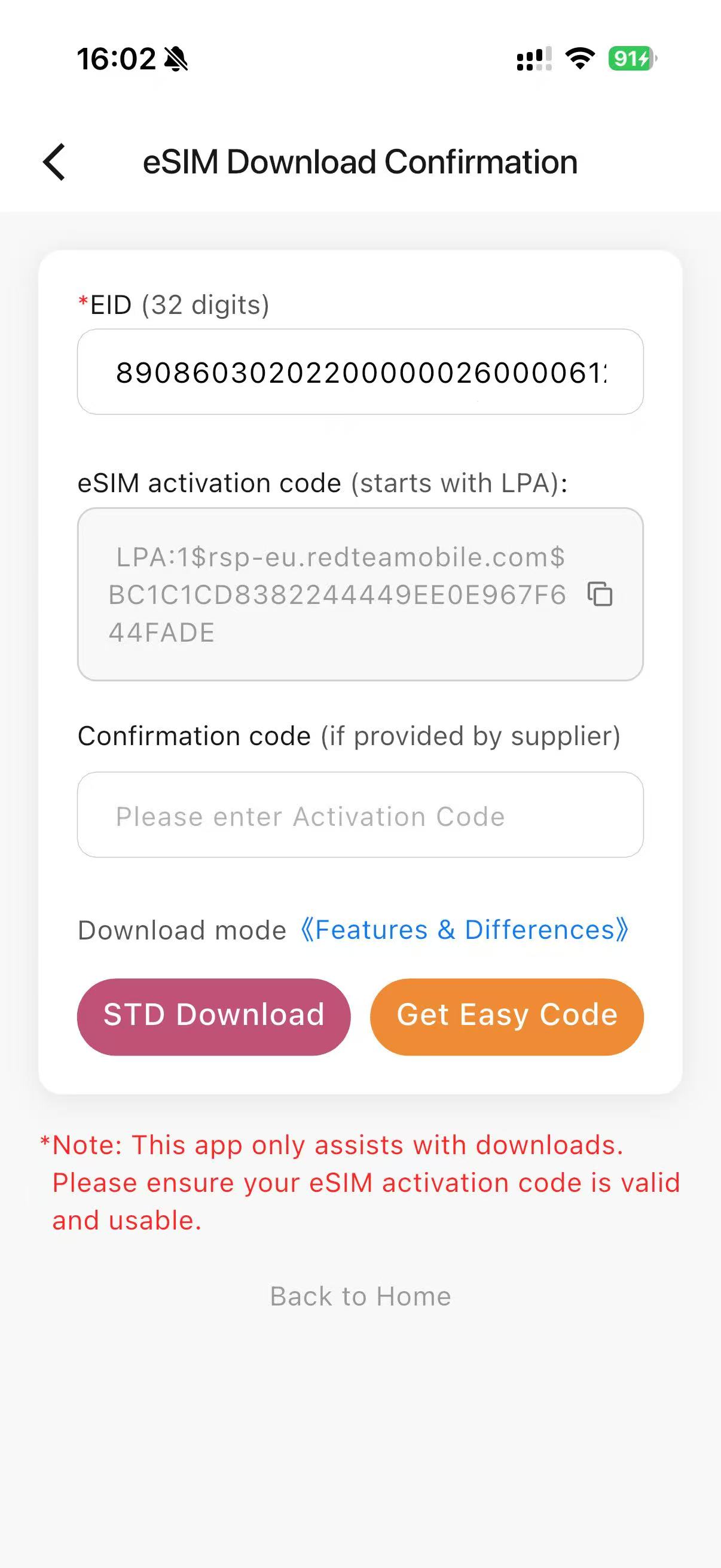 Look for an option called:
STD Download
Tap STD Download.
The app will generate or display a long string. This string contains the eSIM download information extracted from the QR code. It is related to the SM-DP+ address and activation code, but it is formatted in a way that Xesim can use through the SIM Applications menu.
Copy the entire string exactly.
Do not change the order, remove symbols, or manually edit the string.
Step 4: Go to the Xesim SIM Application Menu
After copying the STD Download string, leave the Xesim app and open iPhone Settings.
Go to:
Settings → Cellular → SIMs → Secondary → SIM Applications → Xesim
On some iPhones or iOS language settings, the wording may appear slightly differently:
Settings → Mobile Service → SIMs → Secondary → SIM Applications → Xesim
In Chinese, it may look like:
设置 → 蜂窝网络 / 移动网络 → SIM 卡 → 副号 → SIM 应用程序 → Xesim
This is the key step. The installation is done through SIM Applications, not through Add eSIM.
Step 5: Choose Download eSIM
Inside the Xesim SIM Applications menu, choose:
Download eSIM
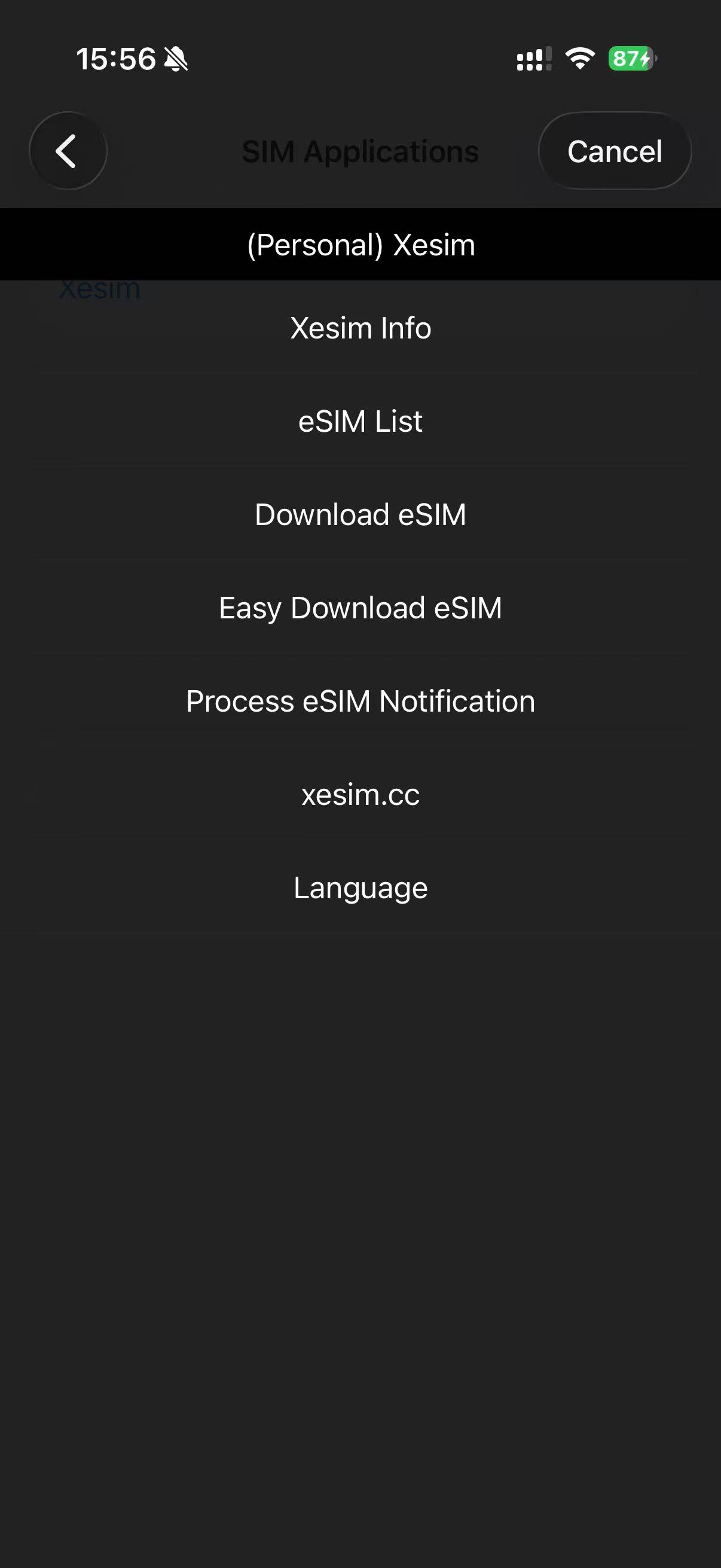 On some versions, it may be called:
Easy Download eSIM
After opening this option, the phone will ask for the eSIM download information.
Paste the full STD Download string copied from the Xesim app.
Then tap:
Send
Step 6: Wait for the Download to Complete
After tapping Send, wait for the Xesim card to download and write the eSIM profile.
This process usually takes around:
30–90 seconds
During this time:
- Do not remove the Xesim card.
- Do not turn off the secondary SIM.
- Do not close the process too quickly.
- Keep the phone in a place with a stable mobile or Wi-Fi connection.
If the process succeeds, a message similar to this should appear:
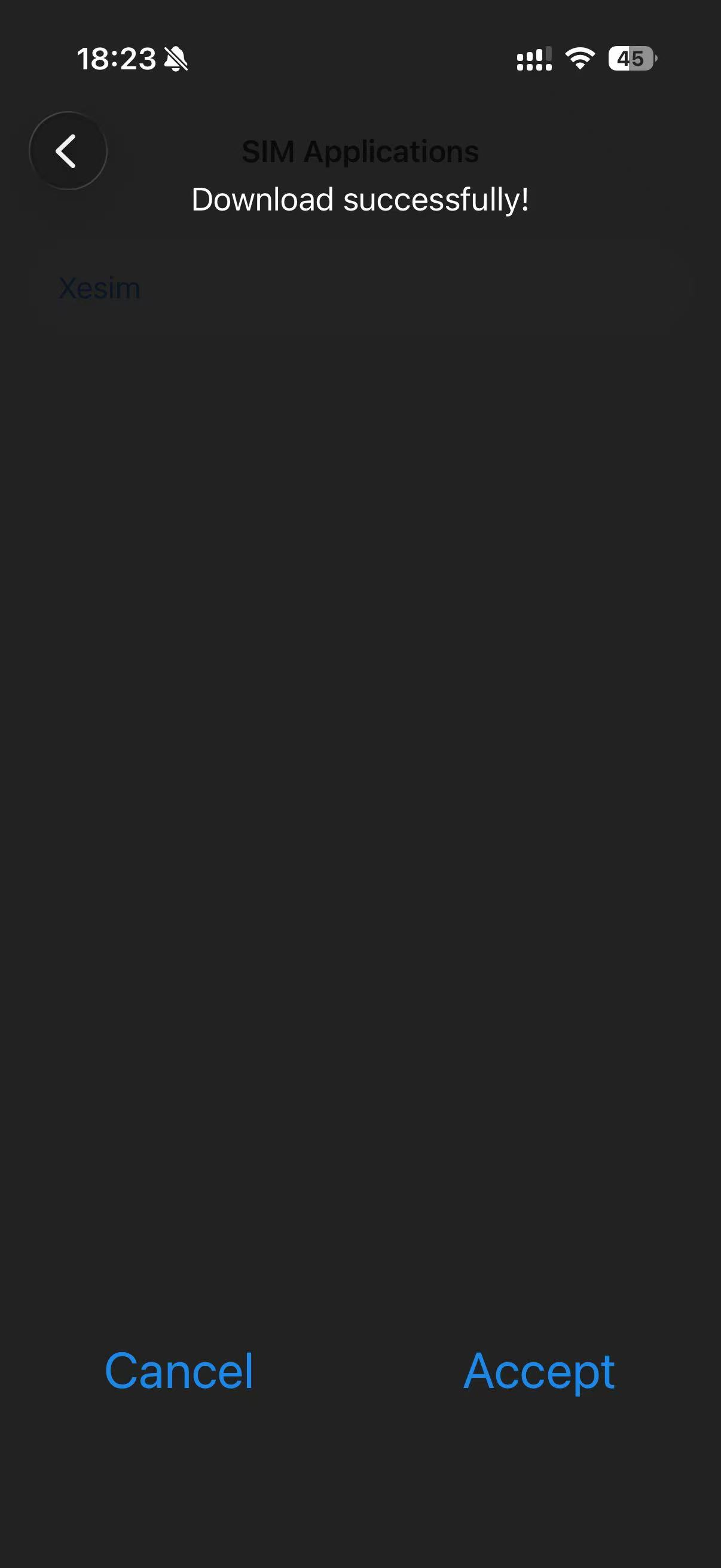 Download successful
Once this message appears, the eSIM profile has been written into the Xesim physical card.
Step 7: Enable the New eSIM Profile
After the download succeeds, return to the Xesim SIM Applications menu and check the available profiles. e. g. the new AIS in the below picture
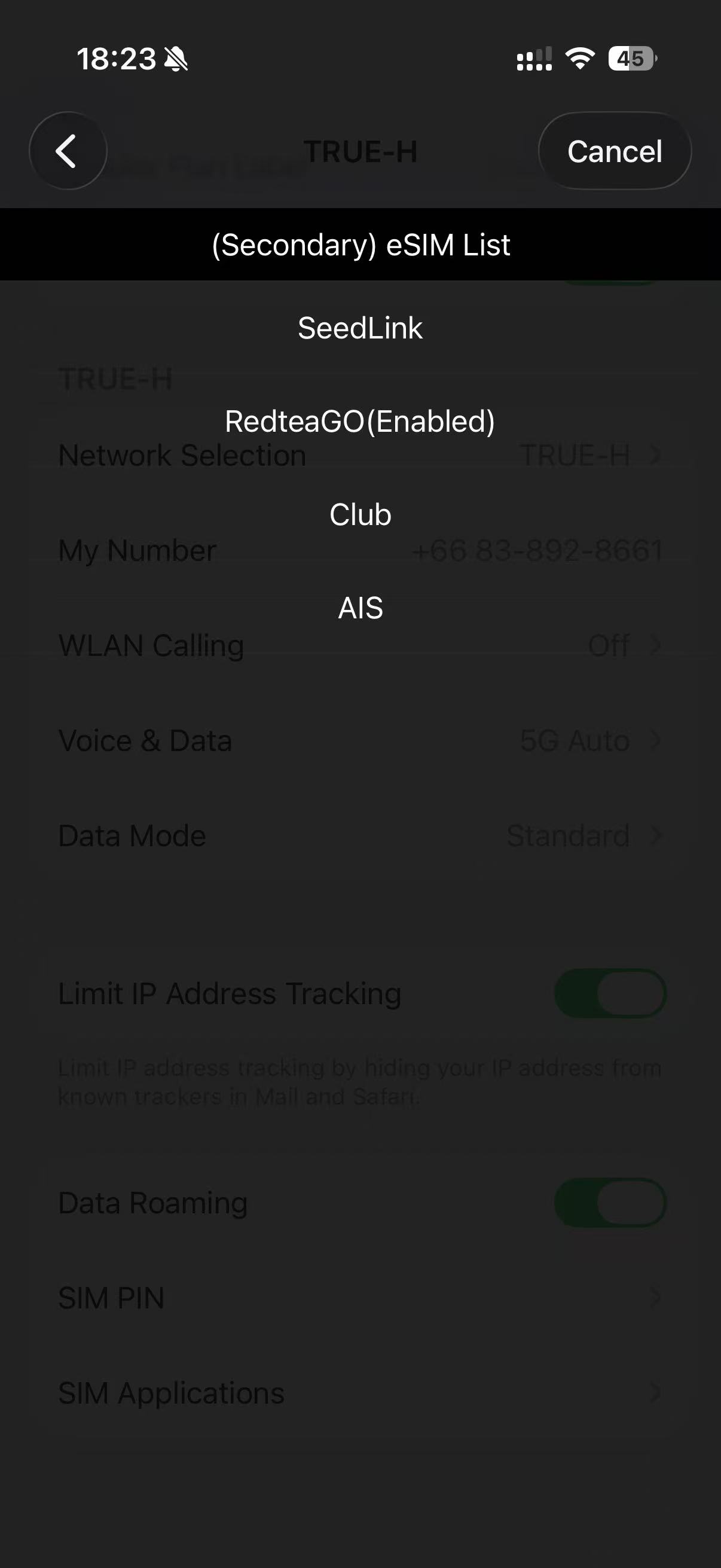 The new eSIM profile should now appear inside Xesim.
Enable the new profile.
If there are older profiles, such as a previous travel eSIM or ClubSIM profile, they can remain stored but disabled. This allows Xesim to work as a manager for multiple country data plans or numbers, although only one active profile is normally used at a time.
A typical arrangement is:
Primary SIM: original physical SIM card Secondary SIM: Xesim physical card Active Xesim profile: new travel eSIM Old Xesim profiles: disabled
Step 8: Turn On Data Roaming
Most travel eSIM data plans require roaming to be enabled.
Go to:
Settings → Cellular → SIMs → Secondary
Turn on:
Data Roaming
Then go to:
Cellular Data
Select the secondary SIM / Xesim card for mobile data testing.
After a short wait, the phone should register on a local network supported by the eSIM plan. For example, a Thailand plan may connect to a local Thai carrier such as TrueMove H, depending on the provider and package.
Open Safari or another app to test internet access.
Important Notes
The phone number field is usually not needed
Many travel eSIMs are data-only plans. They do not require a phone number during installation.
The important installation information is usually:
SM-DP+ address Activation code
When using Xesim, this information is normally packed into the STD Download string generated by the Xesim app.
If a phone number field appears but the eSIM provider did not give a number, leave it blank unless the provider gives a specific instruction.
The QR code may be single-use
Many eSIM QR codes can only be installed once. If the download fails after the QR code has already been used on another device, the provider may need to reissue the eSIM or reset the installation.
Do not delete old profiles unless necessary
If an old eSIM profile is still useful, disable it instead of deleting it. This makes it easier to switch back later.
For example:
Thailand data plan: enabled while in Thailand Japan data plan: disabled Hong Kong data plan: disabled Old ClubSIM profile: disabled
This is the main advantage of using Xesim: the second SIM slot can become a place to manage different eSIM profiles from different providers and countries.
Troubleshooting
Xesim app does not show a scan button
Look at the top-right corner of the app. The scan function may appear only as a small icon.
The QR code opens STD Download instead of installing directly
This is normal. The Xesim app extracts the eSIM information first. The actual installation still happens later through:
Settings → Cellular → SIMs → Secondary → SIM Applications → Xesim → Download eSIM
Download eSIM does not appear
Make sure the Xesim card is inserted in the second SIM slot and that the secondary SIM is turned on.
Also check:
Settings → Cellular → SIMs → Secondary → SIM Applications
If the SIM Applications menu does not appear, restart the iPhone and check again.
Download failed
Check the following:
- The copied STD Download string is complete.
- The eSIM QR code has not already been used.
- The Xesim card is active as the secondary SIM.
- The phone has a stable connection.
- The eSIM plan has not expired.
- The provider has not restricted installation to a specific time window.
Download successful but no internet
Try the following:
- Turn on Data Roaming for the secondary SIM.
- Select the secondary SIM as Cellular Data.
- Restart the iPhone.
- Wait several minutes for network registration.
- Check whether the destination country and carrier are supported by the plan.
- Check whether an APN setting is required by the eSIM provider.
Quick Summary
The complete process is:
- Buy an eSIM plan from a provider.
- Open the provider’s eSIM QR code.
- Open the Xesim app.
- Tap the scan icon in the top-right corner.
- Scan or recognize the provider’s QR code.
- Open STD Download.
- Copy the long STD Download string.
- Open iPhone Settings.
- Go to Cellular → SIMs → Secondary → SIM Applications → Xesim.
- Choose Download eSIM or Easy Download eSIM.
- Paste the copied string.
- Tap Send.
- Wait 30–90 seconds.
- Confirm that the download is successful.
- Enable the new profile in Xesim.
- Turn on Data Roaming.
- Select the Xesim secondary SIM for cellular data and test the connection.
Conclusion
Xesim is a practical workaround for Chinese iPhone users who want to use international eSIM data plans without native iPhone eSIM support. The iPhone still uses a physical second SIM card, but Xesim allows that card to store and switch between eSIM profiles from different countries and providers.
The most important thing to remember is that the provider’s QR code is not installed directly through iOS. Instead, the QR code is first processed by the Xesim app, converted into STD Download information, and then installed through the Xesim SIM Applications menu.
For frequent travelers, this makes a Chinese iPhone much more flexible: the main physical SIM can remain unchanged, while the second SIM slot can be used for Thailand, Japan, Hong Kong, Europe, or other travel data plans whenever needed.
Share this post
Related Posts
Basic tmux Commands for Terminal Sessions
Learn the basic tmux commands to create, list, detach, reattach, rename, and remove terminal sessions.
The Evolution of Infrastructure Management
The evolution of infrastructure management goes from clicking in the cloud console to AI-assisted operations.
Linux Commands Cheat Sheet
Linux commands cheat sheet: comprehensive reference covering basic commands, man pages, and help options.
Linux Commands Use Cases
Linux commands: zip/unzip operations, kernel version checking, GUI system control, head/tail file viewing.